Evenglade // A calmer phone

A calmer phone, with space for your life.

The dumbphone for a smartphone world.

Evenglade is a calm, minimalist home screen (launcher) for Android that helps you spend less time on your phone. Keep the few apps that matter to you close. Set aside the apps that pull you out of the moment until you choose to bring them back with your key. No account, no ads, and nothing ever leaves your phone.

Get it on Google Play Now in testing, and you're welcome to join. Or watch the guides.

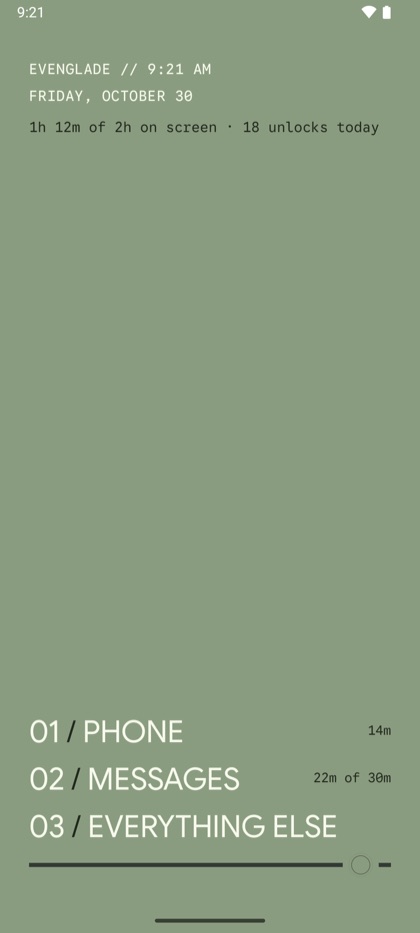
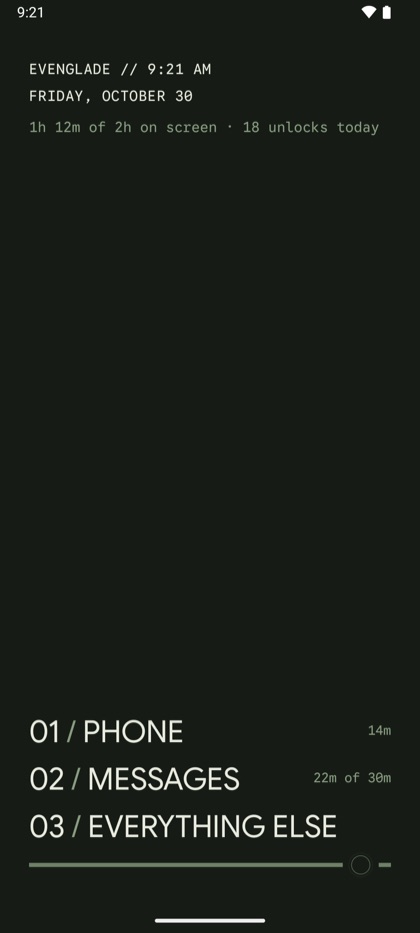
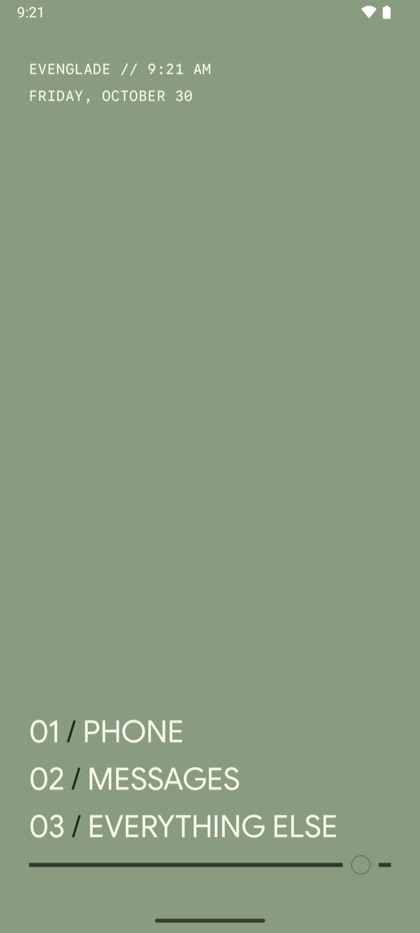
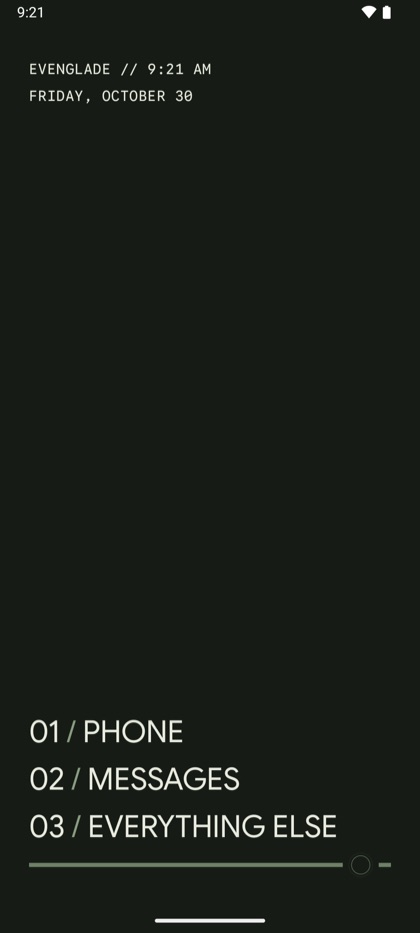
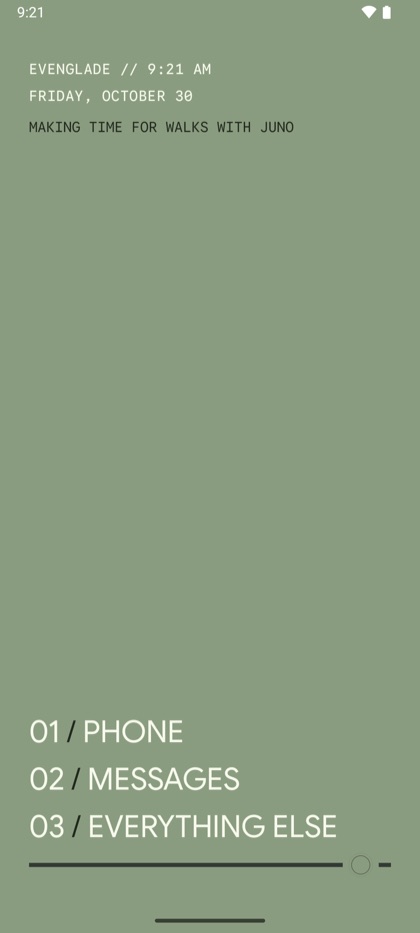
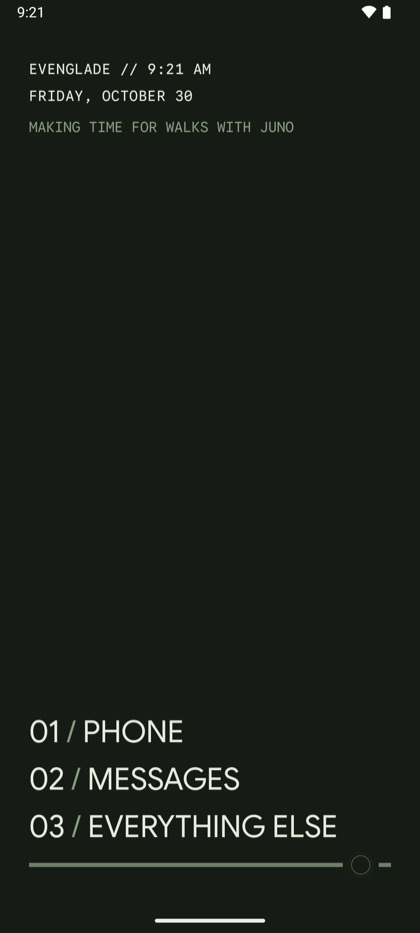
The Evenglade home screen: Evenglade, 9:21 AM, Friday, October 30, Making time for walks with Juno, then 01 Phone, 02 Messages, 03 Everything else The Evenglade home screen in its dark look: the time and date, Making time for walks with Juno, then 01 Phone, 02 Messages, 03 Everything else

Set aside, on your terms

The apps that pull you out of the now, resting until you choose them.

Your home screen holds only the few apps that matter. Everything else waits a tap away, and the apps you'd rather not reach for out of habit are set aside. If one is opened some other way, from a link or a search, a calm Evenglade screen covers it. Turn on notification access, and their notifications are cleared as they arrive.

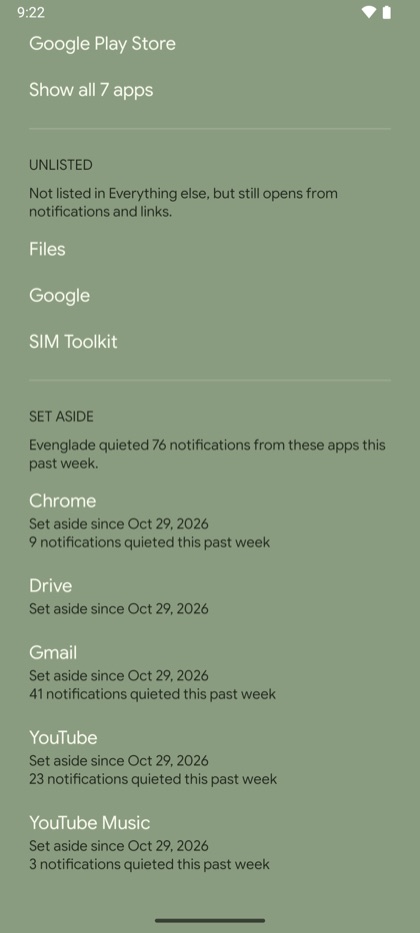
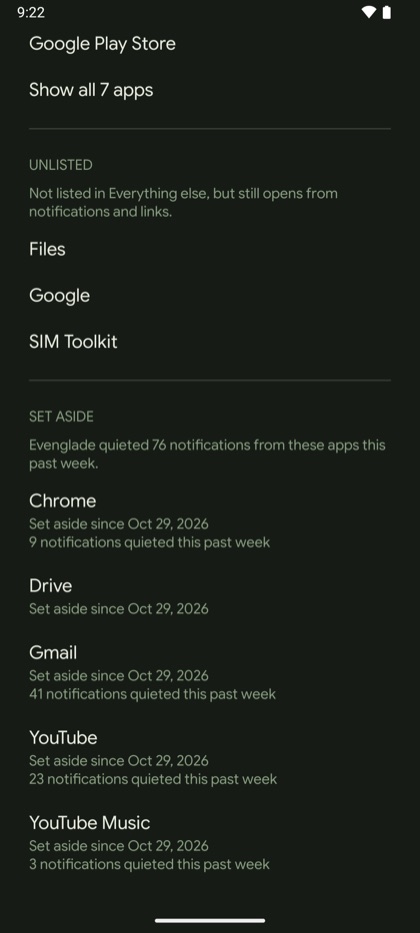
Your apps: Files, Google and SIM Toolkit unlisted, and Chrome, Drive, Gmail, YouTube and YouTube Music set aside since Oct 29, with 76 of their notifications quieted this past week Your apps in the dark look, with the set-aside list

Your apps

The Your apps screen lets you choose exactly where each app belongs. Keep your essentials on the home screen, move the rest to Everything else, or set aside the ones you'd like space from. Apps that work behind the scenes, like Android Auto, can be unlisted, keeping your lists clear while they still open from notifications and links.
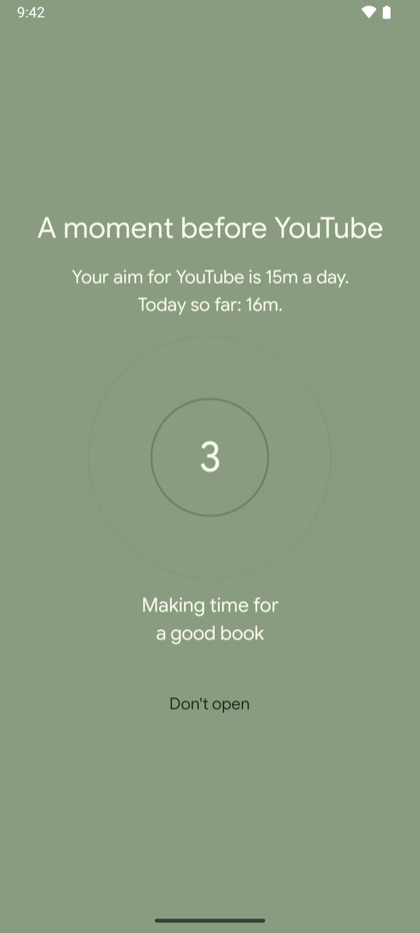
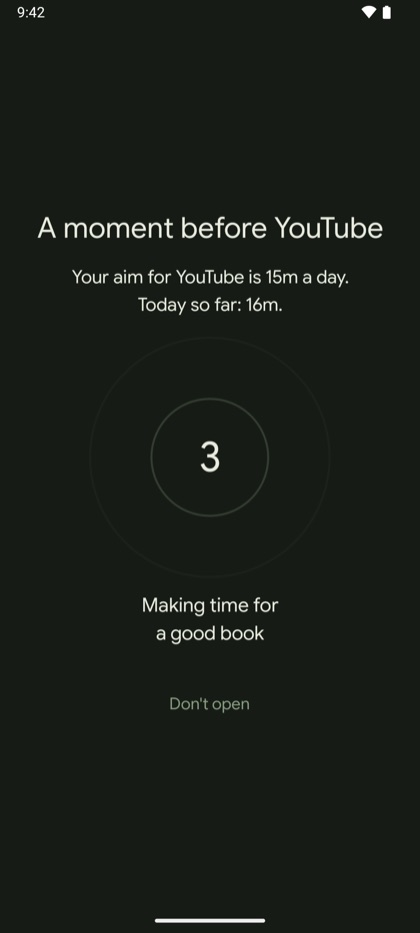
A moment before YouTube: your aim for YouTube is 15m a day, today so far 16m, a breathing countdown, Making time for a good book, and Don't open A moment before YouTube, in the dark look

Your moment to choose

Set aims for your time, for the day or for one app. Once you've passed an aim, opening an app begins with a short pause and a reminder of your reasons: a moment to choose again. Name what you're making time for, such as a walk with the dog, a good book, or playing music, and Evenglade will occasionally show it subtly on your home screen and during these short pauses.

Aims never keep an app from opening; that's what setting an app aside does.

The home screen showing 1h 12m of 2h on screen and 18 unlocks today, with 14m beside Phone and 22m of 30m beside Messages The same home screen with today's screen time, in the dark look

Your screen time

If you'd like to see it, you can tell Evenglade to show today's screen time and unlocks at the top of your home screen. You can also show each app's time and opens beside it.

This data is for your eyes only and never leaves your phone.

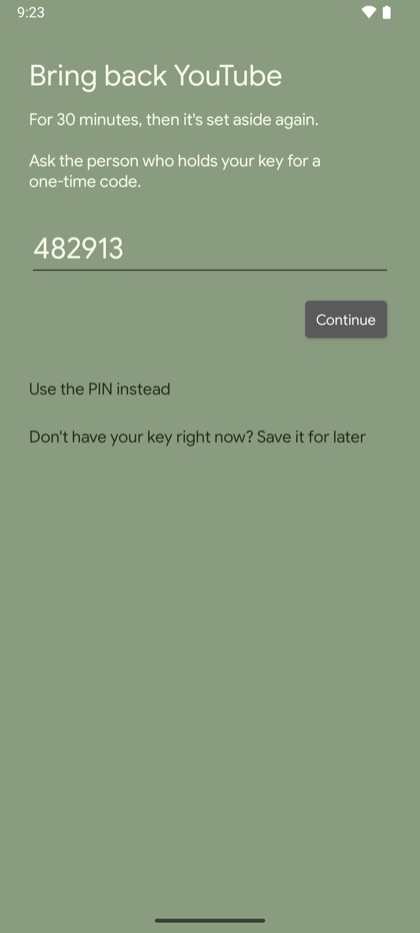
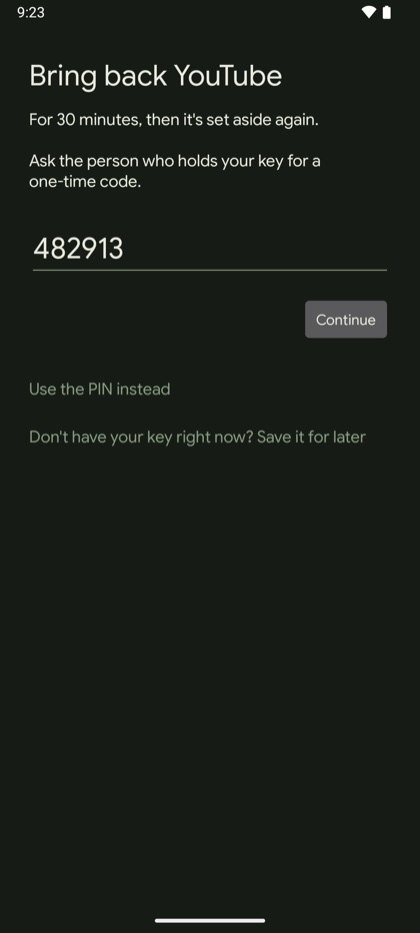
Bring back YouTube: for 30 minutes, then it's set aside again, with a one-time code from an authenticator app typed in Bring back YouTube with a one-time code, in the dark look

Your key

  • Bring an app back with your key, for up to an hour, or for good to your home screen, Everything else, or unlisted. If you choose a set time, it returns to Set aside when time is up, and you'll have a countdown in a notification so you can easily see how much time is left.
  • If you'd like help, someone you trust can hold the key for you: they choose the PIN, and can read you one-time codes from anywhere.
  • They never see what you do on your phone, and they don't need an account either.

Your look

A home screen that feels like yours.

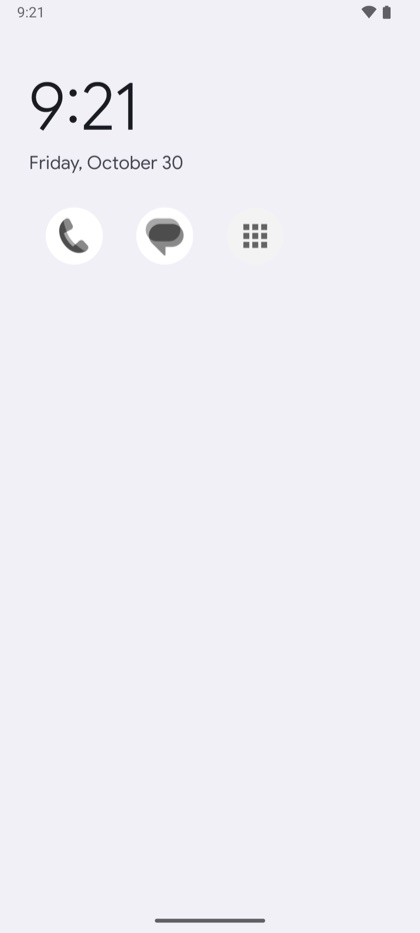
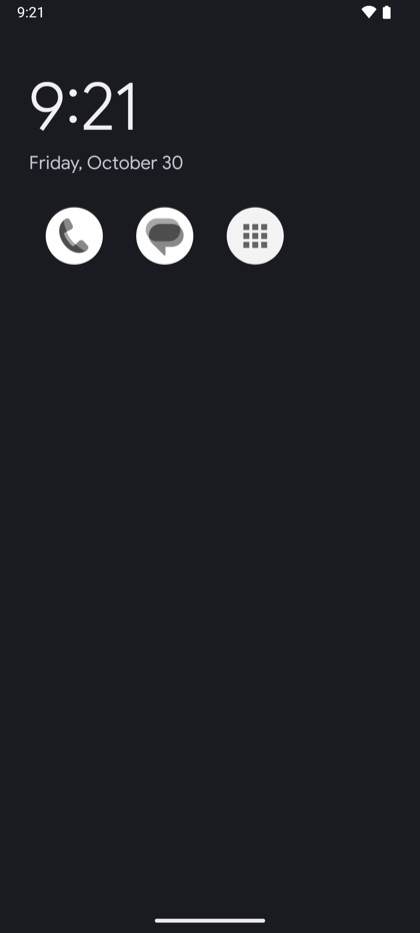
Choose the look that works best for you, from a numbered list on sage green to pencil on a pocket memo pad. The Evenglade and Clean looks can also follow your phone's light and dark mode.

  • The home screen in Evenglade (light): the time, the date, then Phone, Messages and Everything else
    Evenglade (light)Cream on sage green, as a numbered list.
  • The home screen in Evenglade (dark): the time, the date, then Phone, Messages and Everything else
    Evenglade (dark)Cream on deep green, as a numbered list.
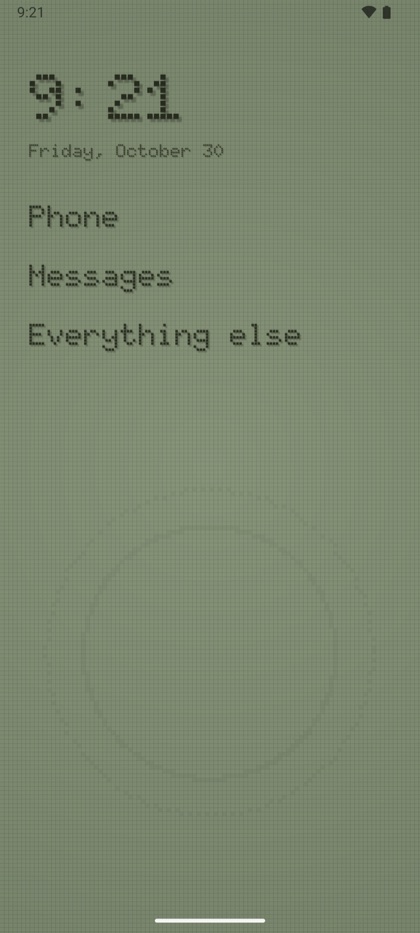
  • The home screen in Retro LCD: the time, the date, then Phone, Messages and Everything else
    Retro LCDOld-style LCD screen with pixel text.
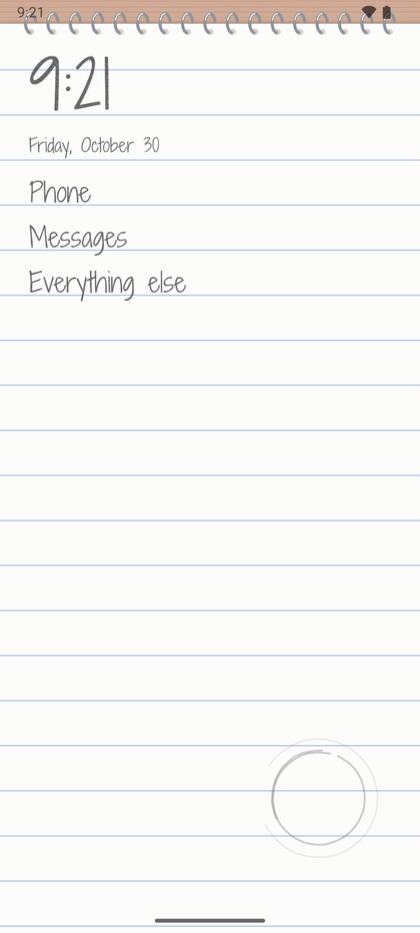
  • The home screen in Memo pad: the time, the date, then Phone, Messages and Everything else
    Memo padHandwritten on a spiral pocket memo pad.
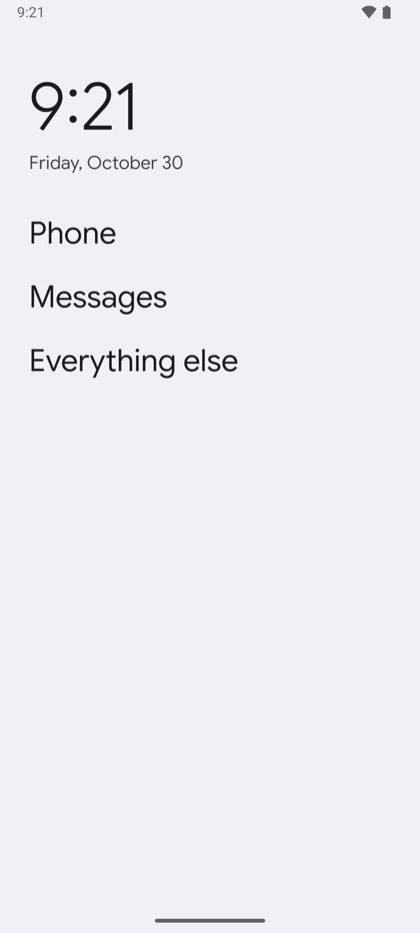
  • The home screen in Clean (light): the time, the date, then Phone, Messages and Everything else
    Clean (light)App names in a plain list.
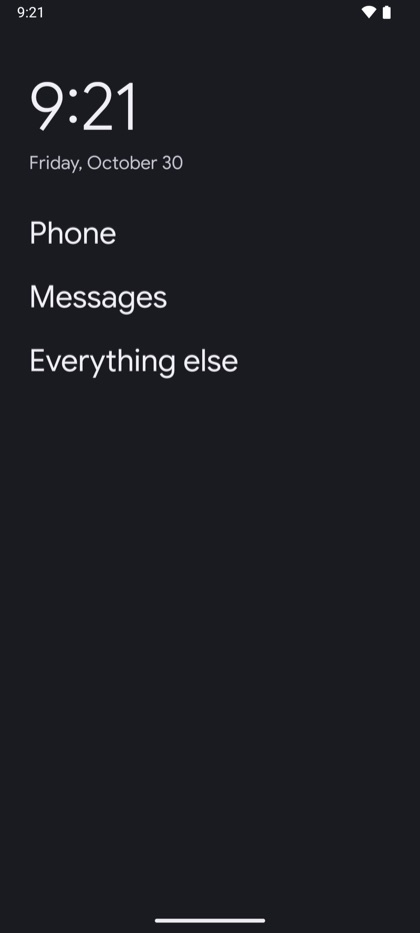
  • The home screen in Clean (dark): the time, the date, then Phone, Messages and Everything else
    Clean (dark)App names in a plain list.
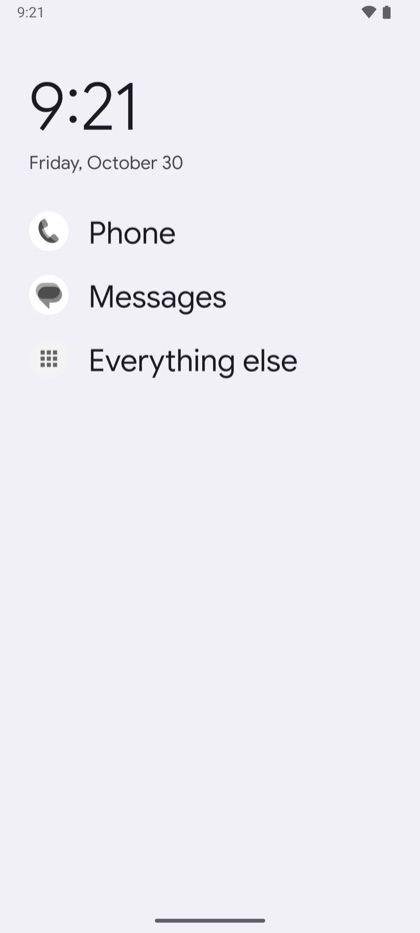
  • The home screen in Clean with icons (light): the time, the date, then Phone, Messages and Everything else
    Clean with icons (light)The plain list, with each app's icon.
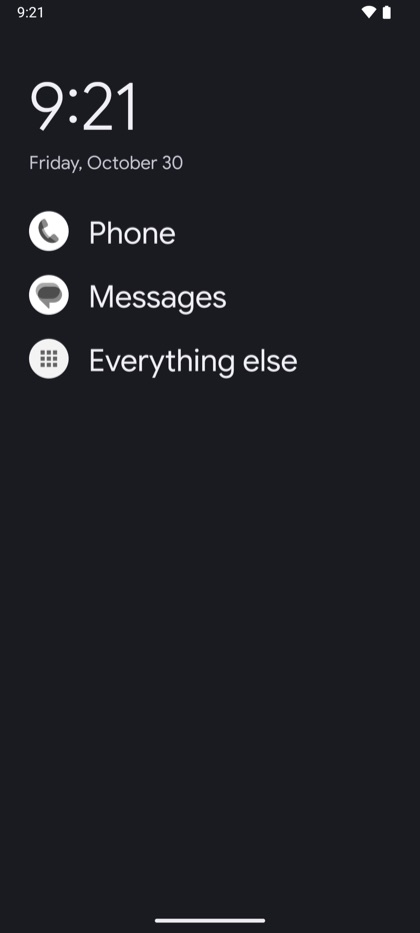
  • The home screen in Clean with icons (dark): the time, the date, then Phone, Messages and Everything else
    Clean with icons (dark)The plain list, with each app's icon.
  • The home screen in Clean icon grid (light): the time, the date, then Phone, Messages and Everything else
    Clean icon grid (light)App icons in a grid, without names.
  • The home screen in Clean icon grid (dark): the time, the date, then Phone, Messages and Everything else
    Clean icon grid (dark)App icons in a grid, without names.

What stays

It's still your phone.

Evenglade is an app on Android, not a new operating system, so your phone keeps everything it already does well.

  • /Android's security updates
  • /Your number, carrier, calls, and texts
  • /Your button or swipe navigation settings
  • /Your camera and photos
  • /Your accounts and device settings
  • /Your keyboard, sounds, and status bar
  • /Maps, and any app you choose to keep

Get Evenglade

Get it on Google Play.

Evenglade is in testing on Google Play, and you're welcome to join the small group trying it before it opens to everyone. Use the Google account that's on your Android phone for each step. If the accounts differ, Google Play won't know you're a tester.

  1. Join the testers group. Join the Evenglade testers group. Only we post there, and only when there's something new to try.
  2. Become a tester. Open the testing page and tap Become a tester.
  3. Install Evenglade. Get it from Google Play. If it doesn't show yet, give it a few minutes. Updates arrive just like any other app's.
  4. Tell us how it's going. On Evenglade's page in the Play Store, scroll down to “Private feedback to developer” and send us a note. It's not a public review, so only we see what you write.

If you can, keep Evenglade for two weeks or more. Google asks for a steady group of testers over 14 days before an app can open to everyone, so each day you keep it helps.

You can also send us feedback or questions by emailing us.

feedback@evenglade.com

Questions

A few things people ask.

Which phones does it work on?
Android 10 or newer. It's built and tested on Pixels, and it's likely to work on other Android phones too. If you try it on one, we'd love to hear how it goes.
Is Evenglade a dumbphone app?
It gives you much of what people look for in a dumbphone: a quiet, minimalist home screen with only the apps you choose. And it keeps your camera, maps, and everything else you rely on.
How is it different from an app blocker?

App blockers focus on control and monitoring. Evenglade shares some of their features, but it's about giving you the power to choose and helping you where you need it. You'll see it in the words we use and in every feature we build. It may seem subtle, but we hope you'll feel the difference.

  • Set aside, not blocked. Apps you set aside come back whenever you choose, with your key, held by you or someone you trust.
  • Aims, not limits. Aims never keep an app from opening. They bring a short pause first, a moment to choose again.
  • Private by design. Evenglade never tracks or judges you, and what it knows stays on your phone.
Is this a launcher?
Yes. “Launcher” is Android's name for the app that acts as your home screen. Evenglade is a launcher, with a few more features to help you choose how you spend your time and attention.
Does it use the internet?
Never. Evenglade has no internet access at all, so your choices, reasons, and screen time stay on your phone.
What if I change my mind?
If you want to stop using Evenglade for a while, go to Evenglade's Settings and tap Stop using Evenglade, under Advanced. It asks for your key, then every app opens as usual, and your choices wait for when you return. See how. To leave for good, uninstall Evenglade, and every app is just as it was.